

Free OpenClaw don’t just fall from the sky. However, with a little time and effort, we can unearth a wealth of free resources. By integrating them, we can construct our very own AI agent: OpenClaw. For instance, we can utilize open-source Docker for the underlying deployment and the open-source Nginx as a reverse proxy. This not only ensures robust performance but also allows for the free acquisition and automatic renewal of TLS certificates.
Furthermore, there are methods available to secure free token quotas from major AI model providers. In this article, I will guide you step-by-step from start to finish. Showing you how to get your “lobster farm” up and running for absolutely zero cost. Of course, you will need at least one server. After all, whether you’re raising real fish or lobster, you need a pond to keep them in!
The decision to install OpenClaw within Docker is primarily based on four key considerations:
(1) Enhanced Environmental Isolation for Greater Security
Containerized deployment strictly isolates OpenClaw from the host operating system. Even if the container were to be compromised, an attacker would find it extremely difficult to directly access sensitive directories and files on the host system. Moreover, this serves as a built-in “safety net” should you have second thoughts later on. We’ve all seen people rush to install software, only to hurriedly uninstall it later due to issues like operational complexity or skyrocketing costs. It’s often easier to “get on the boat” than to “get off”, It wasting time and money, a messy uninstallation can damage the host system’s original operating environment, potentially triggering a cascade of other problems. With containerized deployment, you can install and uninstall with ease at any time.
(2) Simplified Deployment and Operations
Traditional deployment methods often get stalled by issues such as Python version incompatibilities or missing database drivers. Docker packages OpenClaw along with all its dependencies into a standardized image, truly realizing the principle of “build once, run anywhere”. Furthermore, you can utilize specific version tags (e.g., v2026.3.13-1) instead of the generic latest tag to prevent accidental updates from destabilizing your system. Should any issues arise, you can instantly revert to a previous version in a matter of seconds using the docker stop and docker start commands.
(3) Flexible Access Control
You can run separate OpenClaw containers for different channels (such as Telegram, Feishu, WeChat, etc.) or distinct business scenarios, ensuring that they operate independently without interfering with one another. If a problem occurs within a specific container, it will not impact the performance or availability of your other services.
(4) Efficient Resource Management
By utilizing Docker Compose, you can set upper limits on CPU and memory usage, thereby preventing a single AI agent from monopolizing or exhausting the host system’s resources. Additionally, the Docker image supports both x86_64 and ARM64 architectures, ensuring completely consistent behavior whether you are running it on an Intel-based machine, an Apple Mac, Windows WSL2, or a Linux server. This means that once you have successfully deployed the application on one platform, you can transfer it to other platforms with relative ease.
In short: Docker elevates OpenClaw from merely being “functional” to being capable of “stable, secure, and controllable long-term operation.”
Now, getting back to the main topic: using Ubuntu 24.04.4 LTS as our example installation environment, I will walk you through the setup process step-by-step.
1. Installing Docker and Docker Compose
sudo apt install docker.io docker-compose
Check the version to confirm successful installation:
docker --version
docker-compose --version
2. Installing OpenClaw using Docker Compose
I opted for the Dockerized version of OpenClaw featuring integrated support for Chinese IM platforms. This version comes pre-installed and pre-configured with plugins for major domestic instant messaging services, such as Feishu, DingTalk, QQ Bot, and WeChat Work. It enabling the rapid deployment of multiple local IM platforms and significantly simplifying the complexities typically associated with subsequent individual configurations. We utilized a pre-built image deployment strategy, the system can be launched directly by simply using the provided docker-compose.yml and .env.example files.
(1) Create and enter the working directory.
mkdir docker-openclaw && cd docker-openclaw
(2) Retrieve Configuration File.
wget https://raw.githubusercontent.com/justlovemaki/OpenClaw-Docker-CN-IM/main/docker-compose.yml
wget https://raw.githubusercontent.com/justlovemaki/OpenClaw-Docker-CN-IM/main/.env.example
(3) Initialize Environment Variables.
cp .env.example .env
(4) Configure at least the following three variables:
| Environment Variables | Explanation | Example |
|---|---|---|
| MODEL_ID | Default Model ID | gpt-4 |
| BASE_URL | Model Service Address | https://api.openai.com/v1 |
| API_KEY | Model Service Key | sk-xxx |
A minimal example is as follows:
MODEL_ID=gpt-4
BASE_URL=https://api.openai.com/v1
API_KEY=sk-xxx`
API_PROTOCOL=openai-completions
CONTEXT_WINDOW=1000000
MAX_TOKENS=8192
(5) Modify docker-compose.yml to meet requirements.
nano docker-compose.yml
version: '3.8'

x-openclaw-common-env: &openclaw-common-env
  TZ: Asia/Shanghai
  HOME: /home/node
  TERM: xterm-256color
  # 配置同步开关
  SYNC_OPENCLAW_CONFIG: ${SYNC_OPENCLAW_CONFIG}
  # 插件同步配置
  SYNC_EXTENSIONS_ON_START: ${SYNC_EXTENSIONS_ON_START}
  SYNC_EXTENSIONS_MODE: ${SYNC_EXTENSIONS_MODE}
  # 模型配置
  SYNC_MODEL_CONFIG: ${SYNC_MODEL_CONFIG}
  MODEL_ID: ${MODEL_ID}
  PRIMARY_MODEL: ${PRIMARY_MODEL}
  IMAGE_MODEL_ID: ${IMAGE_MODEL_ID}
  BASE_URL: ${BASE_URL}
  API_KEY: ${API_KEY}
  API_PROTOCOL: ${API_PROTOCOL}
  CONTEXT_WINDOW: ${CONTEXT_WINDOW}
  MAX_TOKENS: ${MAX_TOKENS}
  # 提供商 2 (可选)
  MODEL2_NAME: ${MODEL2_NAME}
  MODEL2_MODEL_ID: ${MODEL2_MODEL_ID}
  MODEL2_BASE_URL: ${MODEL2_BASE_URL}
  MODEL2_API_KEY: ${MODEL2_API_KEY}
  MODEL2_PROTOCOL: ${MODEL2_PROTOCOL}
  MODEL2_CONTEXT_WINDOW: ${MODEL2_CONTEXT_WINDOW}
  MODEL2_MAX_TOKENS: ${MODEL2_MAX_TOKENS}
  # 提供商 3 (可选)
  MODEL3_NAME: ${MODEL3_NAME}
  MODEL3_MODEL_ID: ${MODEL3_MODEL_ID}
  MODEL3_BASE_URL: ${MODEL3_BASE_URL}
  MODEL3_API_KEY: ${MODEL3_API_KEY}
  MODEL3_PROTOCOL: ${MODEL3_PROTOCOL}
  MODEL3_CONTEXT_WINDOW: ${MODEL3_CONTEXT_WINDOW}
  MODEL3_MAX_TOKENS: ${MODEL3_MAX_TOKENS}
  # 提供商 4 (可选)
  MODEL4_NAME: ${MODEL4_NAME}
  MODEL4_MODEL_ID: ${MODEL4_MODEL_ID}
  MODEL4_BASE_URL: ${MODEL4_BASE_URL}
  MODEL4_API_KEY: ${MODEL4_API_KEY}
  MODEL4_PROTOCOL: ${MODEL4_PROTOCOL}
  MODEL4_CONTEXT_WINDOW: ${MODEL4_CONTEXT_WINDOW}
  MODEL4_MAX_TOKENS: ${MODEL4_MAX_TOKENS}
  # 提供商 5 (可选)
  MODEL5_NAME: ${MODEL5_NAME}
  MODEL5_MODEL_ID: ${MODEL5_MODEL_ID}
  MODEL5_BASE_URL: ${MODEL5_BASE_URL}
  MODEL5_API_KEY: ${MODEL5_API_KEY}
  MODEL5_PROTOCOL: ${MODEL5_PROTOCOL}
  MODEL5_CONTEXT_WINDOW: ${MODEL5_CONTEXT_WINDOW}
  MODEL5_MAX_TOKENS: ${MODEL5_MAX_TOKENS}
  # 提供商 6 (可选)
  MODEL6_NAME: ${MODEL6_NAME}
  MODEL6_MODEL_ID: ${MODEL6_MODEL_ID}
  MODEL6_BASE_URL: ${MODEL6_BASE_URL}
  MODEL6_API_KEY: ${MODEL6_API_KEY}
  MODEL6_PROTOCOL: ${MODEL6_PROTOCOL}
  MODEL6_CONTEXT_WINDOW: ${MODEL6_CONTEXT_WINDOW}
  MODEL6_MAX_TOKENS: ${MODEL6_MAX_TOKENS}
  # 通道配置
  DM_POLICY: ${DM_POLICY}
  GROUP_POLICY: ${GROUP_POLICY}
  ALLOW_FROM: ${ALLOW_FROM}
  # 电报机器人配置
  TELEGRAM_BOT_TOKEN: ${TELEGRAM_BOT_TOKEN}
  TELEGRAM_DM_POLICY: ${TELEGRAM_DM_POLICY}
  TELEGRAM_ALLOW_FROM: ${TELEGRAM_ALLOW_FROM}
  TELEGRAM_GROUP_POLICY: ${TELEGRAM_GROUP_POLICY}
  # 飞书机器人配置
  FEISHU_DEFAULT_ACCOUNT: ${FEISHU_DEFAULT_ACCOUNT}
  FEISHU_APP_ID: ${FEISHU_APP_ID}
  FEISHU_APP_SECRET: ${FEISHU_APP_SECRET}
  FEISHU_NAME: ${FEISHU_NAME}
  # 飞书机器人多账号 JSON
  FEISHU_ACCOUNTS_JSON: ${FEISHU_ACCOUNTS_JSON}
  FEISHU_GROUPS_JSON: ${FEISHU_GROUPS_JSON}
  FEISHU_DM_POLICY: ${FEISHU_DM_POLICY}
  FEISHU_ALLOW_FROM: ${FEISHU_ALLOW_FROM}
  FEISHU_GROUP_POLICY: ${FEISHU_GROUP_POLICY}
  FEISHU_GROUP_ALLOW_FROM: ${FEISHU_GROUP_ALLOW_FROM}
  # 飞书机器人插件配置
  FEISHU_OFFICIAL_PLUGIN_ENABLED: ${FEISHU_OFFICIAL_PLUGIN_ENABLED}
  FEISHU_STREAMING: ${FEISHU_STREAMING}
  FEISHU_REQUIRE_MENTION: ${FEISHU_REQUIRE_MENTION}
  # 钉钉配置
  DINGTALK_CLIENT_ID: ${DINGTALK_CLIENT_ID}
  DINGTALK_CLIENT_SECRET: ${DINGTALK_CLIENT_SECRET}
  DINGTALK_ROBOT_CODE: ${DINGTALK_ROBOT_CODE}
  DINGTALK_DM_POLICY: ${DINGTALK_DM_POLICY}
  DINGTALK_GROUP_POLICY: ${DINGTALK_GROUP_POLICY}
  DINGTALK_ALLOW_FROM: ${DINGTALK_ALLOW_FROM}
  DINGTALK_CORP_ID: ${DINGTALK_CORP_ID}
  DINGTALK_AGENT_ID: ${DINGTALK_AGENT_ID}
  DINGTALK_MESSAGE_TYPE: ${DINGTALK_MESSAGE_TYPE}
  DINGTALK_CARD_TEMPLATE_ID: ${DINGTALK_CARD_TEMPLATE_ID}
  DINGTALK_CARD_TEMPLATE_KEY: ${DINGTALK_CARD_TEMPLATE_KEY}
  DINGTALK_MAX_RECONNECT_CYCLES: ${DINGTALK_MAX_RECONNECT_CYCLES}
  DINGTALK_DEBUG: ${DINGTALK_DEBUG}
  DINGTALK_JOURNAL_TTL_DAYS: ${DINGTALK_JOURNAL_TTL_DAYS}
  DINGTALK_SHOW_THINKING: ${DINGTALK_SHOW_THINKING}
  DINGTALK_THINKING_MESSAGE: ${DINGTALK_THINKING_MESSAGE}
  DINGTALK_ASYNC_MODE: ${DINGTALK_ASYNC_MODE}
  DINGTALK_ASYNC_ACK_TEXT: ${DINGTALK_ASYNC_ACK_TEXT}
  # 钉钉多机器人 JSON
  DINGTALK_ACCOUNTS_JSON: ${DINGTALK_ACCOUNTS_JSON}
  # QQ 机器人配置
  QQBOT_APP_ID: ${QQBOT_APP_ID}
  QQBOT_CLIENT_SECRET: ${QQBOT_CLIENT_SECRET}
  QQBOT_DM_POLICY: ${QQBOT_DM_POLICY}
  QQBOT_ALLOW_FROM: ${QQBOT_ALLOW_FROM}
  QQBOT_GROUP_POLICY: ${QQBOT_GROUP_POLICY}
  # QQ 机器人多账号 JSON
  QQBOT_BOTS_JSON: ${QQBOT_BOTS_JSON}
  # 企业微信配置
  WECOM_DEFAULT_ACCOUNT: ${WECOM_DEFAULT_ACCOUNT}
  WECOM_ADMIN_USERS: ${WECOM_ADMIN_USERS}
  WECOM_COMMANDS_ENABLED: ${WECOM_COMMANDS_ENABLED}
  WECOM_COMMANDS_ALLOWLIST: ${WECOM_COMMANDS_ALLOWLIST}
  WECOM_DYNAMIC_AGENTS_ENABLED: ${WECOM_DYNAMIC_AGENTS_ENABLED}
  WECOM_DYNAMIC_AGENTS_ADMIN_BYPASS: ${WECOM_DYNAMIC_AGENTS_ADMIN_BYPASS}
  # 企业微信单账号快捷配置(会写入 defaultAccount 指定的账号)
  WECOM_BOT_ID: ${WECOM_BOT_ID}
  WECOM_SECRET: ${WECOM_SECRET}
  WECOM_WELCOME_MESSAGE: ${WECOM_WELCOME_MESSAGE}
  WECOM_SEND_THINKING_MESSAGE: ${WECOM_SEND_THINKING_MESSAGE}
  WECOM_DM_POLICY: ${WECOM_DM_POLICY}
  WECOM_ALLOW_FROM: ${WECOM_ALLOW_FROM}
  WECOM_GROUP_POLICY: ${WECOM_GROUP_POLICY}
  WECOM_GROUP_ALLOW_FROM: ${WECOM_GROUP_ALLOW_FROM}
  WECOM_WORKSPACE_TEMPLATE: ${WECOM_WORKSPACE_TEMPLATE}
  WECOM_AGENT_CORP_ID: ${WECOM_AGENT_CORP_ID}
  WECOM_AGENT_CORP_SECRET: ${WECOM_AGENT_CORP_SECRET}
  WECOM_AGENT_ID: ${WECOM_AGENT_ID}
  WECOM_WEBHOOKS_JSON: ${WECOM_WEBHOOKS_JSON}
  WECOM_DM_CREATE_AGENT_ON_FIRST_MESSAGE: ${WECOM_DM_CREATE_AGENT_ON_FIRST_MESSAGE}
  WECOM_GROUP_CHAT_ENABLED: ${WECOM_GROUP_CHAT_ENABLED}
  WECOM_GROUP_CHAT_REQUIRE_MENTION: ${WECOM_GROUP_CHAT_REQUIRE_MENTION}
  WECOM_GROUP_CHAT_MENTION_PATTERNS: ${WECOM_GROUP_CHAT_MENTION_PATTERNS}
  WECOM_NETWORK_EGRESS_PROXY_URL: ${WECOM_NETWORK_EGRESS_PROXY_URL}
  WECOM_NETWORK_API_BASE_URL: ${WECOM_NETWORK_API_BASE_URL}
  # 企业微信多账号 JSON
  WECOM_ACCOUNTS_JSON: ${WECOM_ACCOUNTS_JSON}
  # NAPCAT 配置
  NAPCAT_REVERSE_WS_PORT: ${NAPCAT_REVERSE_WS_PORT}
  NAPCAT_DM_POLICY: ${NAPCAT_DM_POLICY}
  NAPCAT_ALLOW_FROM: ${NAPCAT_ALLOW_FROM}
  NAPCAT_GROUP_POLICY: ${NAPCAT_GROUP_POLICY}
  NAPCAT_HTTP_URL: ${NAPCAT_HTTP_URL}
  NAPCAT_ACCESS_TOKEN: ${NAPCAT_ACCESS_TOKEN}
  NAPCAT_ADMINS: ${NAPCAT_ADMINS}
  # 工作空间配置
  OPENCLAW_WORKSPACE_ROOT: ${OPENCLAW_WORKSPACE_ROOT}
  # Gateway 配置
  OPENCLAW_GATEWAY_TOKEN: ${OPENCLAW_GATEWAY_TOKEN}
  OPENCLAW_GATEWAY_BIND: ${OPENCLAW_GATEWAY_BIND}
  OPENCLAW_GATEWAY_PORT: ${OPENCLAW_GATEWAY_PORT}
  OPENCLAW_BRIDGE_PORT: ${OPENCLAW_BRIDGE_PORT}
  OPENCLAW_GATEWAY_MODE: ${OPENCLAW_GATEWAY_MODE}
  OPENCLAW_GATEWAY_ALLOWED_ORIGINS: ${OPENCLAW_GATEWAY_ALLOWED_ORIGINS}
  OPENCLAW_GATEWAY_ALLOW_INSECURE_AUTH: ${OPENCLAW_GATEWAY_ALLOW_INSECURE_AUTH}
  OPENCLAW_GATEWAY_DANGEROUSLY_DISABLE_DEVICE_AUTH: ${OPENCLAW_GATEWAY_DANGEROUSLY_DISABLE_DEVICE_AUTH}
  OPENCLAW_GATEWAY_AUTH_MODE: ${OPENCLAW_GATEWAY_AUTH_MODE}
  # 插件控制
  OPENCLAW_PLUGINS_ENABLED: ${OPENCLAW_PLUGINS_ENABLED}
  # 工具配置
  OPENCLAW_TOOLS_JSON: ${OPENCLAW_TOOLS_JSON}
  # 沙箱配置
  OPENCLAW_SANDBOX_MODE: ${OPENCLAW_SANDBOX_MODE}
  OPENCLAW_SANDBOX_SCOPE: ${OPENCLAW_SANDBOX_SCOPE}
  OPENCLAW_SANDBOX_WORKSPACE_ACCESS: ${OPENCLAW_SANDBOX_WORKSPACE_ACCESS}
  OPENCLAW_SANDBOX_JOIN_NETWORK: ${OpenClaw_SANDBOX_JOIN_NETWORK}
  OPENCLAW_SANDBOX_DOCKER_IMAGE: ${OPENCLAW_SANDBOX_DOCKER_IMAGE}
  OPENCLAW_SANDBOX_JSON: ${OPENCLAW_SANDBOX_JSON}
  AGENT_REACH_ENABLED: ${AGENT_REACH_ENABLED}
  AGENT_REACH_USE_CN_MIRROR: ${AGENT_REACH_USE_CN_MIRROR}

networks:
  nginx-network:
    external: true
    name: nginx-network

services:
  openclaw-gateway:
    container_name: docker-openclaw
    image: ${OPENCLAW_IMAGE}
    cap_add:
      - CHOWN
      - SETUID
      - SETGID
      - DAC_OVERRIDE
    # 可选:指定容器运行 UID:GID(例如 1000:1000)
    # 默认保持 root 启动,以便 init.sh 自动修复挂载卷权限后再降权运行网关
    user: ${OPENCLAW_RUN_USER:-0:0}
    environment: *openclaw-common-env
    volumes:
      - ${OPENCLAW_DATA_DIR}:/home/node/.openclaw
      - ${OPENCLAW_DATA_DIR}:/home/node/.openclaw/extensions
      # 沙箱支持:如需启用 Docker沙箱,请取消下面一行的注释并确保 .env 中 OPENCLAW_SANDBOX_MODE 不为 off
      # - /var/run/docker.sock:/var/run/docker.sock
    ports:
      - "${DOCKER_BIND:-0.0.0.0}:${OPENCLAW_GATEWAY_PORT}:${OPENCLAW_GATEWAY_PORT}"
      - "${DOCKER_BIND:-0.0.0.0}:${OPENCLAW_BRIDGE_PORT}:${OPENCLAW_BRIDGE_PORT}"
    init: true
    logging:
      driver: "json-file"
      options:
        max-size: "10m"
        max-file: "3"
        compress: "true"
    networks:
      - nginx-network
    restart: unless-stopped

  openclaw-installer:
    container_name: docker-openclaw-installer
    image: ${OPENCLAW_IMAGE}
    profiles:
      - tools
    user: ${OPENCLAW_RUN_USER:-0:0}
    environment: *openclaw-common-env
    volumes:
      - ${OPENCLAW_DATA_DIR}:/home/node/.openclaw
      - ${OPENCLAW_DATA_DIR}:/home/node/.openclaw/extensions
    entrypoint: ["tail", "-f", "/dev/null"]
    init: true
    networks:
      - nginx-network
    restart: 'no'
    ports: []
    stdin_open: true
    tty: true
    cap_add:
      - CHOWN
      - SETUID
      - SETGID
      - DAC_OVERRIDE
The docker-compose.yml file above is required to run the basic deployment. Specifically:
(1) Lines 1–177: Declare the variables used for models and channels; no modifications are required.
(2) Lines 179–182: You must specify the name of the network shared by both OpenClaw and Nginx here. I have already deployed Nginx within a network named “nginx-network,” so I have entered that name here. Subsequently, Nginx will also be deployed into this same network. If you do not yet have a network, you can create one using the following command:
docker network create nginx-network
(6) Run Installation
docker-compose up -d
(7) Check the installation logs to ensure successful installation.
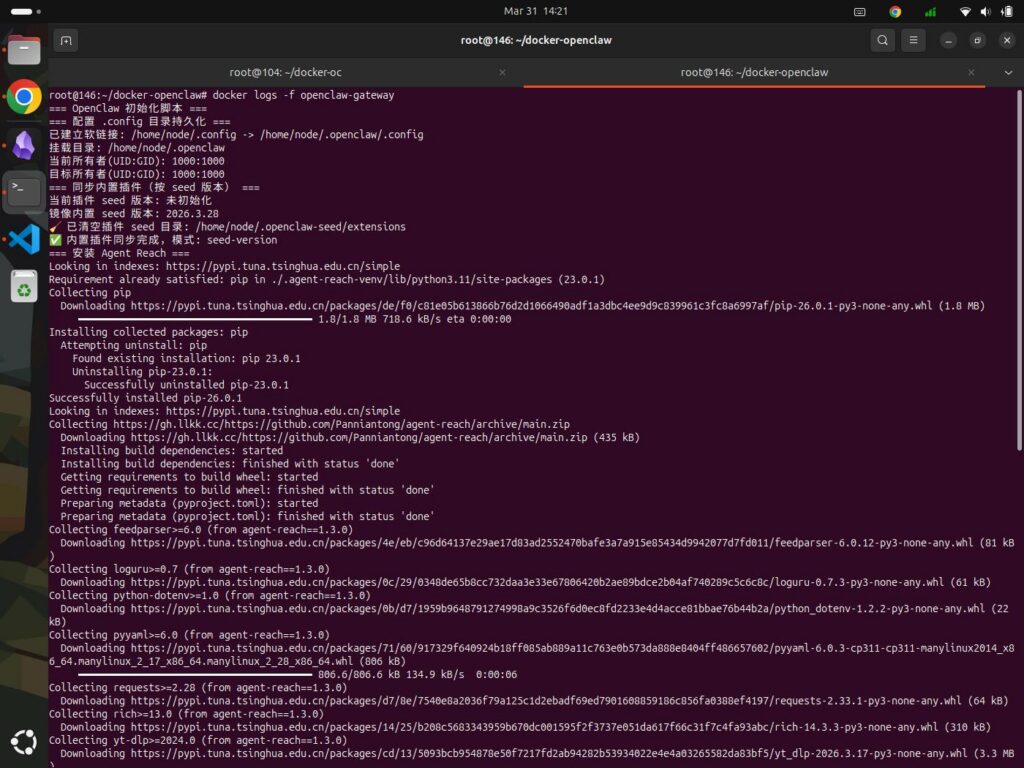
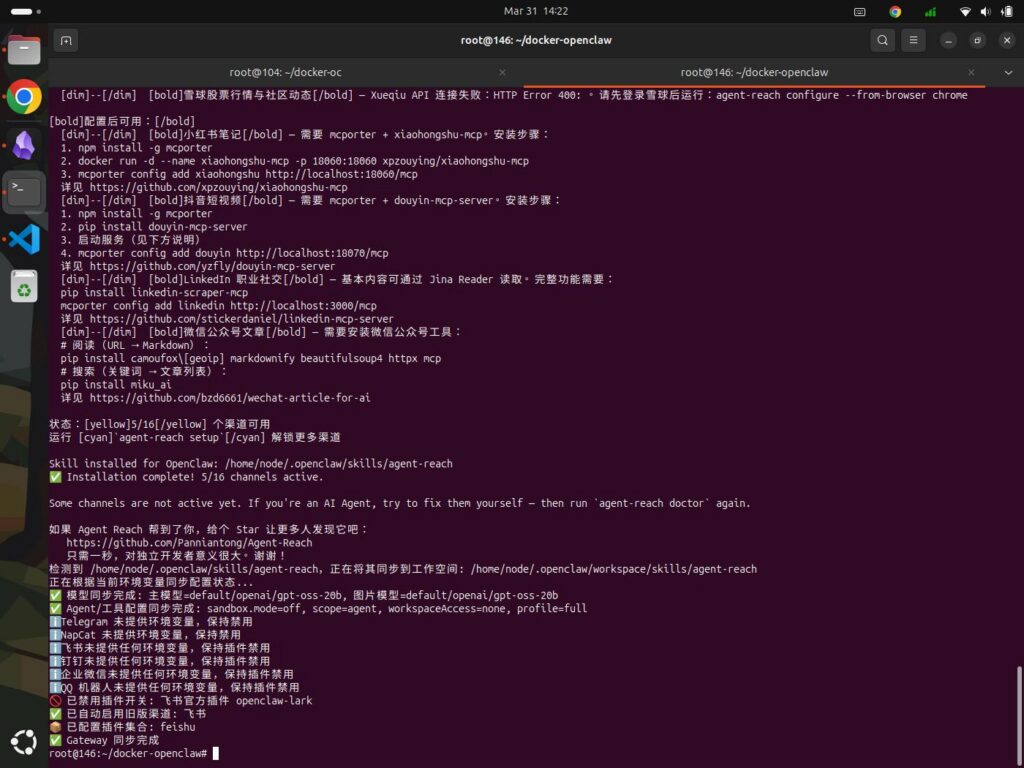
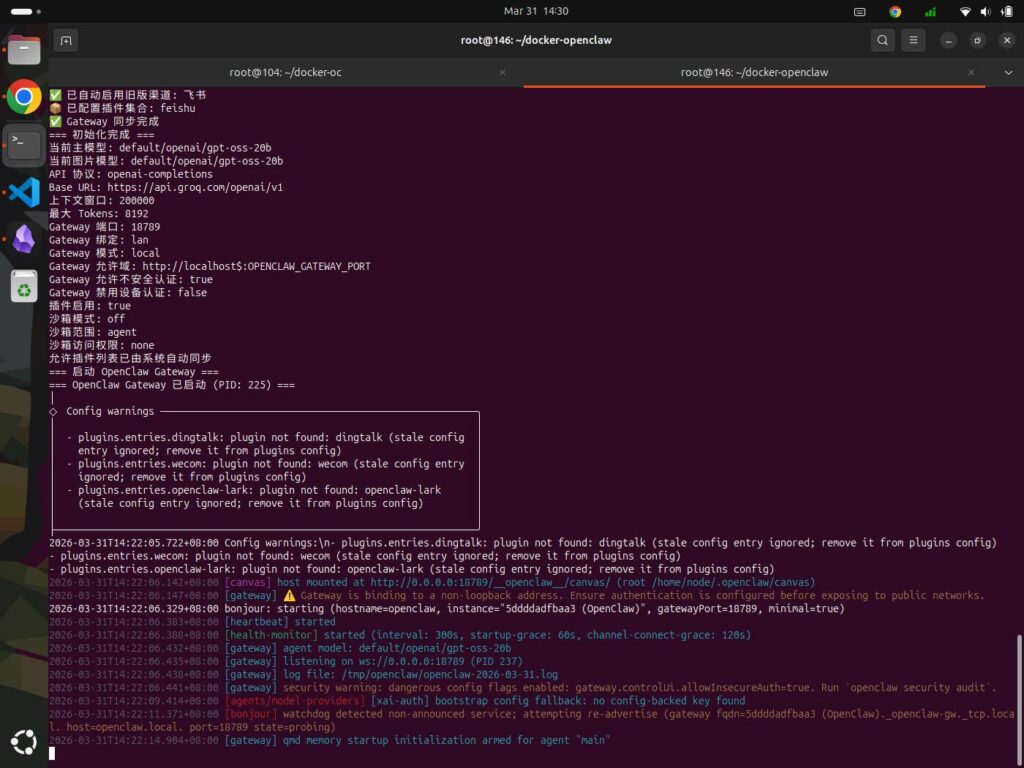
docker logs -f docker-openclaw
During the installation process, necessary components will be downloaded from external websites, this typically takes 1–3 minutes depending on network conditions. Ultimately, the result will appear similar to the figure shown:
3. Why Configure Nginx as a Reverse Proxy?
Configuring a reverse proxy such as Nginx or Caddy for OpenClaw is a crucial step in transitioning from a personal experimental setup to a stable, secure, and publicly accessible production environment. This not only effectively resolves the default limitation of local-only access but also delivers significant benefits across multiple fronts:
(1) Strengthening System Security and Building Defenses
Concealing Real Ports to Reduce Attack Risk
By default, OpenClaw operates on specific ports, such as 18789 or 8080. A reverse proxy allows you to “hide” the service behind the standard 443 (HTTPS) port and disable external access to the original ports, thereby preventing detection by scanning tools and shielding against malicious attacks. This is particularly critical given that OpenClaw’s popularity is currently skyrocketing. As malicious scans and data breaches frequently make headlines, the exposure of personal information now poses a significant security risk.
Enabling Secure HTTPS Encryption
A reverse proxy is easy to configure and automatically renew SSL/TLS certificates for your domain, enabling strongly encrypted HTTPS access. This not only safeguards privacy during data transmission but is also a fundamental requirement for modern web applications.
Supporting Advanced Authentication and Access Control
You can add extra layers of security at the proxy level. For instance, you can configure HTTP Basic Authentication (username/password), IP-based access whitelists, or integrate Identity Providers (IdPs) such as OAuth, so that to implement enterprise-grade Single Sign-On (SSO).
Acting as a “Trusted Proxy”
OpenClaw officially supports a “Trusted Proxy” authentication mode. In this mode, you can fully delegate the responsibility for user authentication to the reverse proxy. OpenClaw then identifies users solely through specific request headers passed by the proxy (e.g., x-forwarded-user). This decouples authentication logic from business logic, thereby further enhancing security.
(2) Overcoming Access Restrictions and Enabling Public Access
Breaking Local Shackles
For security reasons, OpenClaw’s Web UI typically listens only on local addresses (such as localhost or 127.0.0.1) in its native state. This means you cannot access it directly from an external network.
Opening the Door to Public Access
Acting as a bridge between external and internal networks, a reverse proxy forwards incoming public requests to the internal OpenClaw service. In this way, no matter where you are, you can securely access and manage your OpenClaw instance over the internet. This is crucial for integrating OpenClaw into instant messaging (IM) bots, such as those on Feishu, DingTalk, or WeChat Work, that require a public-facing callback URL.
(3) Enhanced Service Stability and Performance
Load Balancing and High Concurrency Support
If your OpenClaw service needs to handle a large volume of requests, a reverse proxy can distribute traffic across multiple backend OpenClaw instances. This not only prevents a single instance from becoming overloaded but also ensures high availability. Even if one instance goes down, the service remains uninterrupted.
Connection Management and Optimization
A proxy server can optimize and manage the connections between clients and backend services. For instance, by correctly configuring the Upgrade header, it can support WebSocket connections, a capability essential for features requiring real-time communication, such as the OpenClaw Control UI. Additionally, you can configure timeouts, buffer settings, and retry policies to enhance the overall user experience.
Request Rate Limiting and Protection
You can easily configure request rate limits at the proxy layer, such as restricting the number of requests allowed per second from a single IP address, so that to prevent API abuse and protect against brute-force attacks.
(4) Simplified Operations and Architecture
Centralized Logging and Monitoring
Reverse proxy like Nginx can generate detailed access logs (including request sources, response status codes, processing times, etc.), facilitating easier auditing, analysis, and debugging.
Unified Certificate and Entry Point Management
TLS certificates for all web services can be centrally managed and renewed at the proxy layer, eliminating the need to configure them individually within each backend application and significantly reducing operational complexity.
Smooth Architectural Evolution
By adopting a proxy pattern, your application architecture becomes clearly layered. In the future, should you need to upgrade, replace, or expand your backend services, you simply need to adjust the proxy configuration. This process is completely transparent to the frontend, greatly facilitating the evolution of your architecture.
In summary, adopting a reverse proxy is a critical consideration when building an ideal architectural foundation.
As for why we recommend using the established heavyweight Nginx rather than the newcomer Caddy, we will save that discussion for the end of this article. For now, let’s proceed to see how to configure Nginx.
4. Installing and Configuring Nginx
For a long time, managing TLS certificates was a significant headache for Nginx users, not only did it require purchasing certificates from third parties, but it also demanded manual configuration and periodic renewal. This is one of the reasons why Caddy—a rising star capable of fully automating the acquisition of free TLS certificates—managed to carve out a niche for itself.
However, the situation changed once Nginx introduced native support for the HTTP-01 ACME challenge. Thanks to the guidance provided in this article, we were able to successfully implement this feature.
Before proceeding, you must possess your own domain name and ensure that the corresponding A record pointing to the public IP address of your server. This is a prerequisite because the process of obtaining a free TLS certificate, which occurs concurrently with the Nginx installation, requires the validation of your domain’s authenticity. Once you have verified that all the above conditions are met, proceed with the following steps:
(1) Clone the nginx-acme and nginx source repositories.
git clone https://github.com/nginx/nginx-acme.git
git clone https://github.com/nginx/nginx.git
(2) Check out the Nginx Git repository to version 1.28.
cd nginx/
git checkout release-1.28.0
cd ../
(3) Create a Dockerfile containing the following instructions.
nano Dockerfile
# [Stage 1] Build the dynamic Nginx module - ngx_http_acme_module.so
FROM rust:1.89-bookworm AS nginx-http-acme-mod

RUN apt-get update && apt-get install --yes --no-install-recommends --no-install-suggests \
        libclang-dev \
        libpcre2-dev \
        libssl-dev \
        zlib1g-dev \
        pkg-config \
        git \
        grep \
        gawk \
        gnupg2 \
        sed \
        make \
&& rm -rf /var/lib/apt/lists/*

RUN mkdir -p /nginx
COPY ./nginx /nginx
COPY ./nginx-acme /mod

WORKDIR /nginx
RUN auto/configure \
    --with-compat \
    --with-http_ssl_module \
    --add-dynamic-module=/mod \
    && make modules

# [Stage 2] Build the release image with the added ACME module
FROM nginx:1.28-bookworm AS uservice-proxy
LABEL org.opencontainers.image.authors="cgoesc2@wgu.edu"
LABEL maintainer="Christian Goeschel Ndjomouo <cgoesc2@wgu.edu>"
LABEL description="uServices Nginx Reverse Proxy"

WORKDIR /
RUN apt-get update && apt-get install --yes --no-install-recommends --no-install-suggests \
        nginx \
        bash \
        libssl-dev

# Delete the apt repository caches
RUN rm -rf /var/lib/apt/lists/*

# Copy nginx HTTP ACME module to release image
COPY --from=nginx-http-acme-mod /nginx/objs/ngx_http_acme_module.so /usr/lib/nginx/modules/

# Expose HTTPS port for all the configured vhosts
EXPOSE 443/tcp
# Port 80 is needed so that the ACME module can process
# the ACME HTTP-01 challenges
EXPOSE 80/tcp

# Start Nginx in the foreground
# Will show log output with 'docker logs -f container_name'
CMD ["nginx", "-g", "daemon off;"]
(4) Create Image
docker build -t nginx-with-acme-mod .
(5) Deployment Module
nano docker-compose.yml
services:
  docker-nginx:
    build:
      context: .
      dockerfile: Dockerfile
      target: uservice-proxy
    container_name: docker-nginx
    networks:
      - nginx-network
    ports:
      - "443:443/tcp"
      - "80:80/tcp"
    volumes:
      - ./nginx-proxy.conf:/etc/nginx/conf.d/default.conf:ro
      - ./nginx.conf:/etc/nginx/nginx.conf:ro
      - ./acme-data:/etc/nginx/acme:rw
    restart: unless-stopped
networks:
  nginx-network:
    external: true
(6) Create a directory named “acme-data” within the same directory to store ACME account keys, PKIX certificates, and private keys.
mkdir acme-data/
(7) Create the First Configuration File: nginx.conf
nano nginx.conf
user  nginx;
worker_processes auto;

error_log  /var/log/nginx/error.log notice;
pid        /run/nginx.pid;

load_module modules/ngx_http_acme_module.so;

events {
    worker_connections  1024;
}

http {
    include       /etc/nginx/mime.types;
    default_type  application/octet-stream;
    log_format  main  '$remote_addr - $remote_user [$time_local] "$request" '
                      '$status $body_bytes_sent "$http_referer" '
                      '"$http_user_agent" "$http_x_forwarded_for"';
    access_log  /var/log/nginx/access.log  main;
    sendfile        on;
    #tcp_nopush     on;
    keepalive_timeout  65;
    #gzip  on;
    include /etc/nginx/conf.d/*.conf;
}
(8) Create a second configuration file: nginx-proxy.conf
nano nginx-proxy.conf
resolver 127.0.0.11 ipv6=off valid=5s;

acme_issuer letsencrypt {
    uri         https://acme-v02.api.letsencrypt.org/directory;
    contact     youremail@youremail.com; #真实可用的邮箱地址
    state_path  /etc/nginx/acme;
    accept_terms_of_service;
    ssl_trusted_certificate /etc/ssl/certs/ca-certificates.crt;
    ssl_verify off;
}

acme_shared_zone zone=ngx_acme_shared:256k;

server {
    # listener on port 80 is required to process ACME HTTP-01 challenges
    listen 80;
    location / {
        return 404;
    }
}

# 假设你的域名是openclaw.yourdomain.com
server {
    set $forward_scheme http;
    set $server "docker-openclaw";
    set $port 18789;

    listen 443 ssl;
    server_name openclaw.yourdomain.com;  # 替换为你的域名

    client_max_body_size 100M;  # 根据需求调整,支持文件上传

    # SSL 证书(使用 acme 自动申请)
    ssl_certificate_cache max=2;
    acme_certificate letsencrypt key=rsa;
    ssl_certificate $acme_certificate;
    ssl_certificate_key $acme_certificate_key;

    # SSL 协议配置
    ssl_protocols TLSv1.2 TLSv1.3;
    ssl_ciphers ECDHE-ECDSA-AES128-GCM-SHA256:ECDHE-RSA-AES128-GCM-SHA256:ECDHE-ECDSA-AES256-GCM-SHA384:ECDHE-RSA-AES256-GCM-SHA384:ECDHE-ECDSA-CHACHA20-POLY1305:ECDHE-RSA-CHACHA20-POLY1305:DHE-RSA-AES128-GCM-SHA256:DHE-RSA-AES256-GCM-SHA384;
    ssl_prefer_server_ciphers off;

    # 基础代理头
    proxy_set_header Host $host;
    proxy_set_header X-Real-IP $remote_addr;
    proxy_set_header X-Forwarded-For $proxy_add_x_forwarded_for;
    proxy_set_header X-Forwarded-Proto $scheme;
    proxy_set_header X-Forwarded-Host $host;

    # WebSocket 支持(OpenClaw所需)
    proxy_http_version 1.1;
    proxy_set_header Upgrade $http_upgrade;
    proxy_set_header Connection "upgrade";

    # 超时设置(如果OpenClaw处理长任务,可灵活调整)
    proxy_connect_timeout 60s;
    proxy_send_timeout 60s;
    proxy_read_timeout 60s;

    # 缓冲设置(适合 API 响应)
    proxy_buffering off;
    proxy_cache off;

    location / {
        proxy_pass $forward_scheme://$server:$port;

        # 可选:如果 OpenClaw 有静态文件路径,可以单独处理
        # location /static/ {
        #     proxy_pass $forward_scheme://$server:$port/static/;
        #     expires 30d;
        # }
    }

    # 健康检查端点
    location /health {
        proxy_pass $forward_scheme://$server:$port/health;
        access_log off;
    }
}
(9) Run docker-compose to install
docker-compose up -d
5. Debugging OpenClaw
If everything mentioned above proceeds smoothly, and the necessary basic parameters such as the valid API credentials required by the modelhave been properly configured, generally speaking, your setup is complete. Of course, this constitutes merely a basic framework; much like a house, it still requires further “furnishing” and refinement. This process involves various specific techniques and potential pitfalls—lessons learned through experience—which are outlined below.
(1) Regarding the Cost of OpenClaw
The initial cost of setting up the Openclaw (i.e., the technical infrastructure) amounts to a few hundred dollars, it is a one-time expense that you can effectively save by simply following this tutorial. However, the subsequent costs such as ongoing operational expenses can be seemingly endless.
Fortunately, there is a solution: free API tokens are indeed available. You simply need to invest a little time to register for them, as verified through my own testing while creating this tutorial, this method works. The specific APIs utilized in this tutorial were sourced from two providers: Groq and Zhipu AI. Naturally, it is worth noting that each provider imposes limits on API concurrency. However, during the testing phase, this is unlikely to pose any significant issues.
Additionally, OpenClaw default 30-minute heartbeat check consumes Tokens. if your Token supply is limited, it is recommended to disable or optimize the OpenClaw Heartbeat feature.
(2) Upon your initial login, you may encounter a “pairing required” error.
This occurs because devices connecting for the first time require approval. You can resolve this by performing the following steps:
(1) View Request
docker exec -it docker-openclaw openclaw devices list
(2) Copy the Request and approve it. For example, if the Request is 33776de5-18bd-47ea-b4d4-ec627422a75c,
docker exec -it docker-openclaw openclaw devices approve 33776de5-18bd-47ea-b4d4-ec627422a75c
6. Now, let’s revisit the issue mentioned earlier regarding the choice between Nginx and Caddy.
For a long time, I relied on Nginx as my frontend proxy. However, after discovering Caddy, I was deeply impressed by its automatic TLS certificate acquisition and minimalist configuration. Consequently, I began gradually migrating some of my backend applications to Caddy. This experimental deployment of OpenClaw was, in fact, initially set up on Caddy.
One key factor to consider in this context is OpenClaw’s requirement for WebSocket support. While Nginx requires specific configuration to handle WebSockets. Caddy offers native support working right out of the box without the need for any special adjustments. Caddy automatically detects WebSocket upgrade headers and handles them correctly. There is no longer any need to painstakingly scour documentation for the correct proxy headers, as explained in the community Q&A: “WebSocket upgrades are automatic. Remove all the @websocket stuff in your config… and just have your client connect with wss:// and it will be proxied to your backend as a websocket.”
This led me to believe that a Caddy + OpenClaw combination would be a viable solution. Yet, after days of repeated experimentation, I ultimately failed to get this setup working. Ironically, it was Nginx that came to my rescue. By comparing OpenClaw instances deployed separately on Nginx and Caddy, one can clearly observe the differences in their behavior.
(1) The dark-themed background image is generated by Caddy.
The accompanying error message reads: “disconnected (1006): no reason”—a rather vague indication that no specific cause was identified. The WebSocket request is displayed as “Finished,” yet no response code is shown. The “Finished” status does not signify that the request was successful, it merely indicates that the request/response process has concluded at the browser or client level.
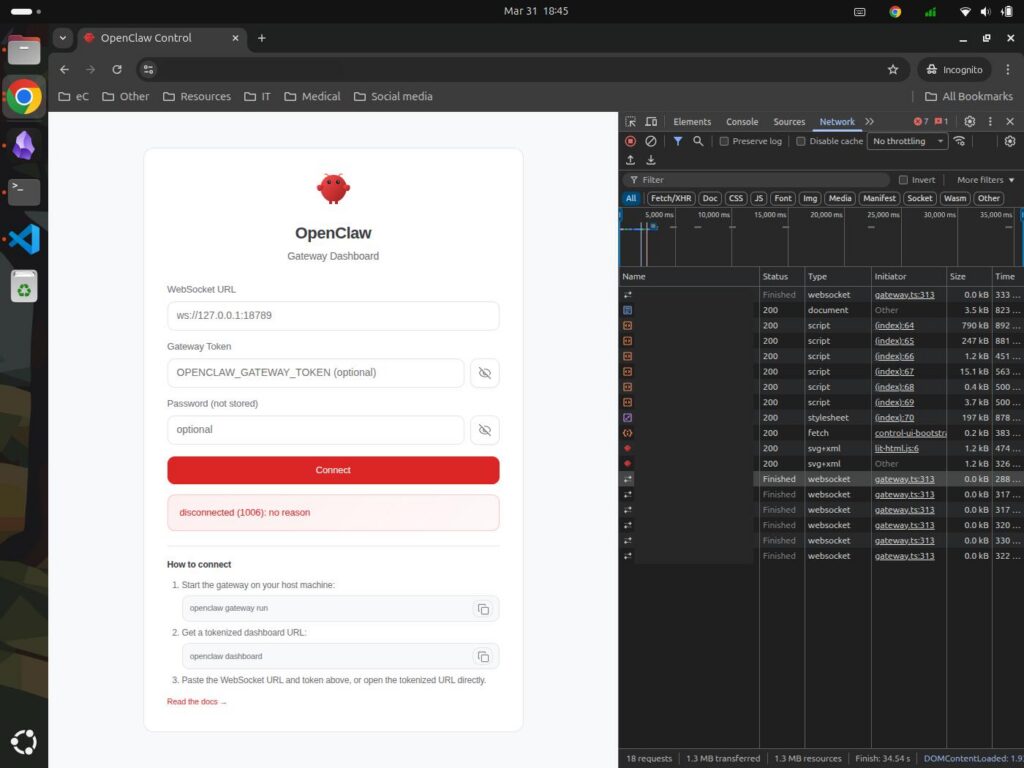
(2) The image with the light-colored background indicates the action taken by Nginx.
It shows that the WebSocket successfully initiated a request to the backend, and the response code was “101 Switching Protocols”, it is key indicator of a successful WebSocket handshake.
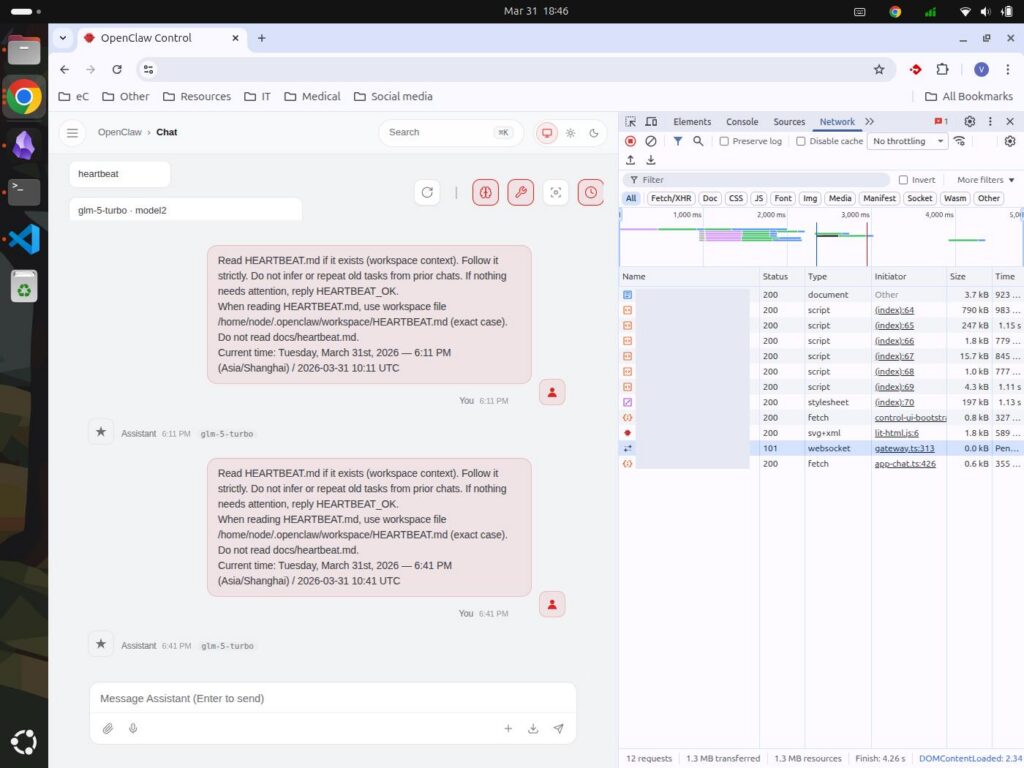
Based on the analysis, it appears that this issue may be related to one or both of the following factors:
(1) Caddy Configuration
Caddy enables HTTP/2 by default, whereas the WebSocket handshake is initially conducted in the HTTP/1.1 format. Caddy’s strict HTTP/2 validation mechanism may terminate the connection before the protocol upgrade is successfully completed. The specific Caddy version used in the experiments was v2.10.2, which may be susceptible to this type of issue.
(2) Docker Network Isolation
If the OpenClaw container is bound to 127.0.0.1 within the docker-compose.yml file, it becomes inaccessible to the Caddy container. Consequently, even if the Caddy configuration itself is correct, the connection would still fail due to a “Connection Refused” error. However, this remains merely a hypothesis, as the docker-compose.yml file utilized for both Nginx and Caddy setups was identical.
Ultimately, subsequent testing confirmed that the issue was indeed related to factor (1). The validated configuration file is attached below for your reference:
# 你的域名openclaw.yourdomain.com
openclaw.yourdomain.com {
    reverse_proxy docker-openclaw:18789 {
        # 强制 HTTP/1.1(WebSocket 必需)
        transport http

        # 传递标准代理头
        header_up Host {host}
        header_up X-Real-IP {remote}
        header_up X-Forwarded-For {remote}
        header_up X-Forwarded-Proto {scheme}
        header_up X-Forwarded-Host {host}
        header_up X-Forwarded-Port {server_port}
    }
}
Finally, I would like to express my gratitude to the creators and sharers of the resources cited in this article. All your contributions ensure that value not only endures but also appreciates.
There is a wonderful motto within the OpenClaw community that goes something like this:
If you succeed, you generate productivity; if you don’t, you gain learning and experience.
I wholeheartedly agree.